


Back-to-school season can quickly change the way a household uses the internet.
In the morning, phones may be checking messages and school updates. In the afternoon, students begin using learning platforms, researching assignments, joining online tutoring sessions and uploading files.
At the same time, someone may be working from home, participating in a video meeting, using cloud applications or simply trying to stream a show without interruptions.
When the connection starts to feel slow, it is easy to reach one immediate conclusion:
“We need faster internet.”
Sometimes that may be true.
But not always.
In many homes, the internet plan may provide enough capacity while the actual problem is happening somewhere inside the home: router placement, weak Wi-Fi coverage, interference, older devices or several demanding activities happening at the same time.
Before upgrading your service, these nine back-to-school Wi-Fi checks can help Edmonton and Alberta households understand what is really happening with their home network.
1. Think About What Happens at the Same Time
Two households with four people can have completely different internet requirements.
In one home, the connection may primarily support web browsing, social media and television.
In another, at 7:00 p.m., several things may be happening simultaneously:
- Someone is on a work video call
- A student is attending online tutoring
- Another person is streaming television
- Someone is gaming online
- Photos are synchronizing to the cloud
- Devices are downloading updates
- Several smartphones are connected
- Security cameras and smart-home devices are online
That period of peak activity tells you much more about your internet needs than simply counting the number of people in the household.
Create a simple peak-use map
For a day or two, pay attention to:
- How many people are online
- What they are doing
- How many video calls happen simultaneously
- Whether someone is gaming
- How many televisions are streaming
- Whether cameras or smart devices are connected
- Which rooms experience the most problems

This can help distinguish between two very different situations.
Insufficient capacity: too many demanding activities are competing for the available connection.
Insufficient Wi-Fi coverage: the internet performs well near the router but poorly in certain areas of the home.
Understanding that difference can prevent you from paying for more speed when the actual problem is Wi-Fi coverage.
2. Check Where Your Router Is Located
One of the simplest changes can also make a noticeable difference.
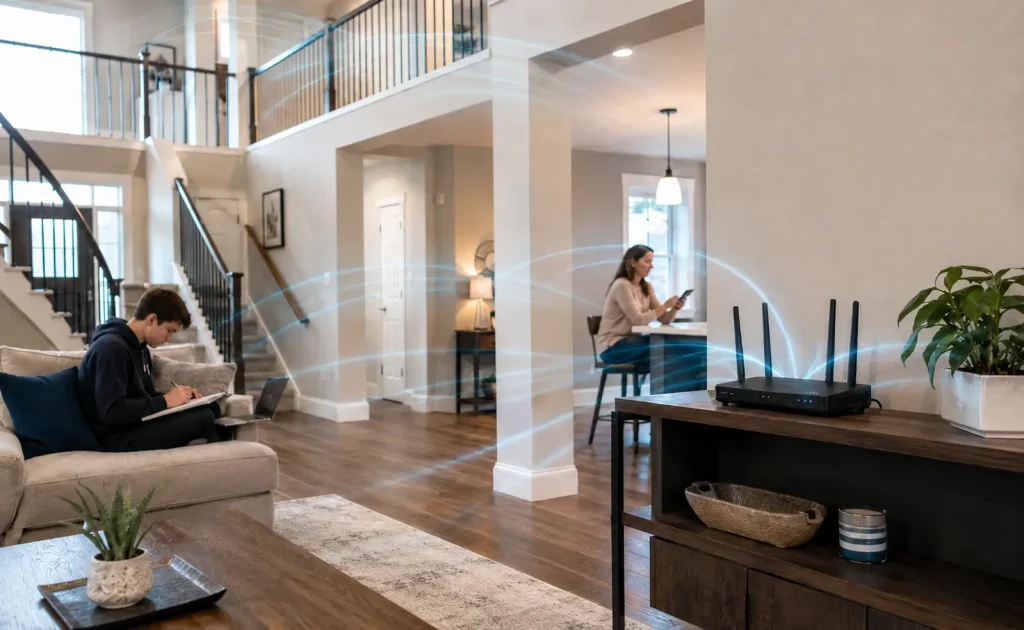
Wi-Fi uses radio signals that need to travel through your home to reach connected devices.
If your router is hidden inside a cabinet, positioned at one extreme end of the house or surrounded by obstacles, wireless performance may suffer.
As a general rule, try to keep the router:
- In a relatively central location
- In an open area
- Elevated rather than directly on the floor
- Away from large metal objects
- Outside fully enclosed cabinets
This can be especially important in Alberta homes with multiple levels or a basement being used as an office, bedroom or study area.
A router positioned perfectly for the main living room may not provide the same experience for a student working two floors away.
Convenience is not always the same as coverage
The easiest place to hide network equipment is not necessarily the best place to distribute Wi-Fi.
Before moving your router, however, make sure your wiring and installation allow the equipment to be relocated safely and correctly.
3. Test the Rooms You Actually Use
A speed test performed beside the router does not necessarily represent the experience throughout the entire home.
If your child studies upstairs or you work from a basement office, those are the areas you should test.
Try a simple comparison:
- Test close to the router.
- Test in the main study area.
- Test in the home office.
- Test in rooms where the connection regularly feels weak.
Use the same device whenever possible.
If performance is strong near the router but drops significantly in another room, the problem may be related more to Wi-Fi coverage than to the actual internet service.
If several devices perform poorly even close to the gateway, other factors may need to be investigated.
The principle is simple:
Test where the problem happens, not only where you already know the connection works well.
4. Check Whether the Problem Affects Only One Device
Imagine this situation.
A student’s laptop feels extremely slow, but a smartphone and another computer work normally in exactly the same location.
That changes the diagnosis.
Before making changes to the entire network, investigate the device itself.
Consider checking:
- Pending operating system updates
- Network drivers
- Applications running in the background
- Heavy CPU or storage usage
- Security software
- The age of the Wi-Fi adapter
- Previously saved network configurations
An older computer may support very different wireless technology from a newer smartphone.
That is why testing two different devices in the same location can be very useful.
If both experience the same problem, the network deserves further investigation.
If only one device struggles, increasing the speed of the internet plan may not address the actual issue.
5. Do Not Forget About Upload Speed
Most internet advertising focuses heavily on download speed.
But studying and working from home also require information to travel in the opposite direction.
Upload capacity becomes important when people:
- Submit school assignments
- Upload documents to learning platforms
- Participate in video calls
- Back up files to cloud storage
- Upload photos or videos
- Use certain security cameras
- Synchronize files with online services
Canada’s connectivity benchmarks often reference both download and upload capacity because both directions matter.
However, a national broadband benchmark should not be treated as a personalized recommendation for every household.
The right amount of internet capacity depends on the number of people, devices and demanding activities happening simultaneously.
A household with several video meetings, cloud uploads and connected devices may experience completely different demands from one primarily using the internet for browsing and streaming.
When evaluating your connection, pay attention to both download and upload performance.
6. Consider a Guest Network for Visitors and Some Smart Devices
During the school year, friends, relatives and classmates may visit more frequently.
At the same time, modern homes often contain an increasing number of connected devices:
- Televisions
- Cameras
- Smart plugs
- Voice assistants
- Printers
- Sensors
- Thermostats
- Gaming consoles
- Tablets
A guest Wi-Fi network can provide internet access without necessarily giving those users or devices the same access as your primary home network.
Canadian cybersecurity guidance encourages households and organizations to think about separating guest access and connected devices where appropriate.
This does not mean every household needs a complicated enterprise network.
Many modern routers already include a guest network feature that can be configured relatively easily.
The objective is simply to introduce some organization.
Your family’s primary devices can remain on the main network, while visitors and certain connected devices may use another network when appropriate.
7. Use Back-to-School Season as a Wi-Fi Security Checkup
Preparing your network should not only be about improving signal strength.
It is also a good opportunity to review basic router security.
Some practical items worth checking include:
- Changing default administrator credentials
- Using a strong router password or passphrase
- Keeping router firmware updated
- Using WPA2 or WPA3 encryption when available
- Disabling WPS when it is not required
- Reviewing connected devices
Take a moment to look at the devices currently connected to your network.
Do you recognize all of them?
It is easy to forget about an old tablet, television, gaming console or smart device that was configured months ago.
You do not need to become a cybersecurity expert to perform a useful review.
Start with three simple questions:
What is connected?
Who should have access?
Are the important security settings enabled?
That alone can provide much better visibility into the network your household depends on every day.
8. Identify Wi-Fi Dead Zones Before Buying More Equipment
When one room has weak Wi-Fi, it can be tempting to immediately purchase an extender.
Sometimes that may help.
Other times, it may not be the best solution.

The right approach depends on factors such as:
- Home size
- Number of floors
- Router placement
- Building materials
- Number of connected devices
- Areas requiring coverage
- Types of activities happening in those areas
In a larger home, a mesh Wi-Fi system or properly positioned access points may distribute coverage differently from a traditional Wi-Fi extender.
But purchasing more equipment before understanding the problem can result in adding technology without actually addressing the cause.
Start by mapping the home.
Mark:
🟢 Good coverage areas
🟡 Inconsistent areas
🔴 Consistently weak areas
Then look at where those areas are located in relation to your router.
The goal is not to install as much networking equipment as possible.
The goal is to provide reliable coverage where your household actually needs it.
9. Test Your Network During the Busiest Time of Day
A home network that performs perfectly at 10:00 a.m. may behave differently once everyone is home.
That is why your final test should happen during a normal period of heavy use.
For example:
- Someone is on a video call
- A student is completing homework
- A television is streaming
- Smartphones are connected
- Someone is gaming
- Cloud services are synchronizing
You do not need to create an artificial stress test.
Simply observe what happens during a typical busy evening.
Ask yourself:
- Do video calls remain stable?
- Are there specific rooms where Wi-Fi performance drops?
- Is only one device experiencing problems?
- Does performance change when several activities start at once?
- Is there a particular time when the problem regularly appears?
That information is far more valuable than relying on one isolated speed test.
Do You Actually Need a Faster Internet Plan?
Possibly.
But it should not automatically be the first conclusion.
A higher-capacity internet plan can make sense when several demanding activities happen simultaneously and the current connection genuinely becomes the bottleneck.
However, more internet speed does not necessarily fix:
- Poor router placement
- Weak coverage in one room
- An older laptop
- Wireless interference
- Incorrect network settings
- A large home that needs better Wi-Fi distribution
The best decision starts by understanding exactly what problem you are trying to solve.
Back-to-School Wi-Fi Checklist
Before the school year gets busy, review:
- Router location
- Wi-Fi coverage in study areas
- Performance during peak hours
- Download and upload performance
- Older devices
- Pending updates
- Router firmware
- WPA2 or WPA3 security
- Router administrator password
- Guest Wi-Fi
- Connected devices
- Wi-Fi dead zones
- Video-call requirements
- Cloud applications
- Simultaneous streaming and gaming
You do not have to complete every item in one afternoon.
Even reviewing a few of these areas can give you a much clearer picture of how your home network is performing.
Frequently Asked Questions
How much internet speed does a family need for school and working from home?
There is no single speed that works for every household.
Requirements depend on how many people are online simultaneously and what they are doing.
Video meetings, cloud applications, gaming, streaming, backups and file uploads can all contribute to overall demand.
Evaluate your busiest period rather than simply counting household members.
Does faster internet automatically improve Wi-Fi?
No.
Your internet plan determines the capacity available to the home, while Wi-Fi performance also depends on router placement, coverage, interference, network design and the capabilities of individual devices.
Where should I place my Wi-Fi router?
In general, choose an open, relatively central and elevated location.
Avoid hiding the router inside enclosed furniture or placing it behind large obstacles whenever possible.
The ideal location will depend on the design of your home.
Is a guest Wi-Fi network useful at home?
It can be.
A guest network lets you provide internet access without necessarily sharing your primary household network.
It can also help separate visitors and certain connected devices from your main devices.
Should I use WPA2 or WPA3?
Use modern encryption supported by your router and devices.
WPA3 is the newer standard, while WPA2 remains widely supported by many devices.
Older security methods should generally be avoided where modern alternatives are available.
When should I consider mesh Wi-Fi?
Mesh Wi-Fi may be useful when a home needs reliable wireless coverage across several rooms, floors or difficult areas.
However, it is worth checking router placement and identifying the actual coverage problem before buying additional equipment.
Better Wi-Fi Starts With Identifying the Right Problem
Back-to-school season can dramatically increase the amount of technology being used inside a home.
But preparing your connection does not necessarily mean buying the fastest available internet plan.
Sometimes the solution may be as simple as repositioning the router.
In other situations, the household may need better Wi-Fi coverage, updated equipment, improved network organization or additional internet capacity.
The important step is understanding what is actually happening inside the home.
At CloudStar, we believe better connectivity decisions begin with understanding how people use technology every day — to study, work, communicate, stream, play and stay connected.
If you are preparing your household for back-to-school season in Edmonton or elsewhere in Alberta, start by reviewing your actual needs and your Wi-Fi coverage.
Explore CloudStar Internet options and check service availability for your address before choosing a plan.