


Your internet feels slow.
A video call freezes. A website takes longer than expected to load. Streaming starts buffering in one room. Someone upstairs complains that the Wi-Fi barely works.
The first reaction is often:
“We probably need a faster internet plan.”
Sometimes that may be the right solution.
But slow internet and weak Wi-Fi are not the same problem.
A faster plan can provide more capacity to your home, but it cannot automatically fix poor router placement, wireless interference, an older device or a weak signal in a distant room.
Before paying for more speed, it is worth spending a few minutes identifying where the problem actually begins.
These eight practical tests can help Canadian households determine whether they are dealing with slow internet or Wi-Fi problems, and what to investigate next.
First: Understand Internet Speed vs Wi-Fi
Your internet connection brings connectivity into your home.
Wi-Fi distributes that connection wirelessly to your devices.
Those two layers work together, but problems can occur independently.
For example:
- Your internet service may be performing normally while Wi-Fi coverage is weak upstairs.
- Your Wi-Fi signal may appear strong while the available internet capacity is overloaded.
- One laptop may struggle while every other device works properly.
- Download performance may look acceptable while video calls struggle because of upload performance or stability.
That is why one speed test is rarely enough to diagnose the complete problem.
The objective is not simply to answer:
“Is my internet fast?”
It is to determine:
“Where does performance begin to change?”

Test 1: Compare Wi-Fi With a Wired Ethernet Connection
One of the most useful diagnostic tests is comparing wireless performance with a wired connection.
If practical, connect a laptop or desktop computer directly to your modem or gateway using an Ethernet cable.
Then compare that result with the same device using Wi-Fi.
What are you looking for?
If the wired connection performs well but Wi-Fi is significantly worse, the internet service itself may not be the primary problem.
Instead, investigate:
- Router placement
- Wi-Fi coverage
- Interference
- Wireless settings
- Device Wi-Fi capabilities
If both wired and wireless performance are consistently poor, the problem may be further upstream.
That could involve:
- Available internet capacity
- Gateway or modem performance
- Cabling
- Service conditions
- Network congestion
- Another technical issue
A wired test removes much of the wireless environment from the equation.
That makes it an excellent starting point when trying to distinguish slow internet from weak Wi-Fi.
Important
You do not need to keep your household permanently connected by Ethernet.
This is simply a troubleshooting test.
If you are unsure how to connect equipment safely, avoid moving or disconnecting cables that are part of an installation you do not understand.
Test 2: Test Wi-Fi Close to the Router and Far Away
Next, test the same device in two locations.
Start close to the router.
Then move to the room where the problem usually happens.
For example:
- Upstairs bedroom
- Basement office
- Kitchen
- Garage
- Home office
- Far end of the house
Use the same device and, when possible, perform the tests within a short period of time.
If performance is good near the router but poor farther away
That strongly suggests a coverage-related issue.
Wireless signals weaken as they travel through:
- Walls
- Floors
- Furniture
- Metal
- Appliances
- Other physical obstacles
A multi-storey Alberta home may therefore provide a very different Wi-Fi experience between the main floor and a basement office.
Increasing the speed of the internet plan does not necessarily make the Wi-Fi signal travel farther.
That may require a different solution, such as:
- Better router placement
- Improved wireless coverage
- Mesh Wi-Fi
- Additional access points
- Different equipment placement
First identify the weak area.
Then decide what kind of solution makes sense.
Test 3: Try a Second Device in the Same Location
Suppose one laptop feels extremely slow in the bedroom.
Before blaming the network, try another device in exactly the same spot.
For example:
- Another laptop
- Smartphone
- Tablet
If both devices experience the same problem, the network becomes a more likely suspect.
If the second device works normally, investigate the first device.
Possible causes include:
- Older Wi-Fi hardware
- Pending system updates
- Network driver problems
- Background applications
- Security software
- Storage or CPU usage
- Browser extensions
- Malware
- Incorrect network settings
Devices do not all connect to Wi-Fi in the same way.
A newer smartphone may support wireless technologies that an older laptop does not.
This is why comparing devices is such a powerful troubleshooting step.
Before upgrading your entire household connection, make sure the problem is not limited to one piece of equipment.
Test 4: Compare Quiet Hours With Peak Hours
Timing can reveal another important clue.
Test your connection during a quiet part of the day.
Then test again when your household is busiest.
Imagine an evening where:
- One person is on a video call
- Someone is gaming
- A television is streaming
- Cloud backups are running
- Several phones are connected
- A security camera is uploading
- A student is downloading a large file
If everything feels fine during quiet periods but performance deteriorates when multiple activities occur simultaneously, household demand may be contributing to the problem.
This is different from a weak Wi-Fi signal.
The wireless connection may be functioning properly, but many devices and applications are competing for the available capacity.
Look for patterns
Ask:
- Does the slowdown happen around the same time every day?
- Does it begin when someone starts gaming or streaming?
- Do video calls become unstable while large uploads are happening?
- Does the entire household slow down, or only one room?
Patterns are more useful than a single number.
They help determine whether the issue is related to capacity, coverage or one particular device.
Test 5: Restart the Right Equipment
Restarting equipment is a familiar troubleshooting step because it can resolve temporary software or connection issues.
But it should be done methodically.
If appropriate for your setup:
- Save anything important on connected devices.
- Restart the affected device first.
- If the problem remains, restart the router or gateway according to the equipment instructions.
- Allow it to reconnect completely.
- Test again.
Avoid repeatedly unplugging networking equipment without understanding what it does.
Some homes may have separate components, including:
- Modem
- Router
- Gateway
- Mesh units
- Fibre equipment
- Phone equipment
Disconnecting the wrong component can temporarily interrupt more services than expected.
What does restarting tell you?
If performance improves temporarily but the same problem returns frequently, restarting may be treating the symptom rather than the cause.
That deserves further investigation.
Frequent problems could point toward:
- Equipment behaviour
- Configuration
- Coverage
- Interference
- Device issues
- Service conditions
A restart is useful.
A restart every day is not a complete diagnosis.
Test 6: Review Router Placement and Interference
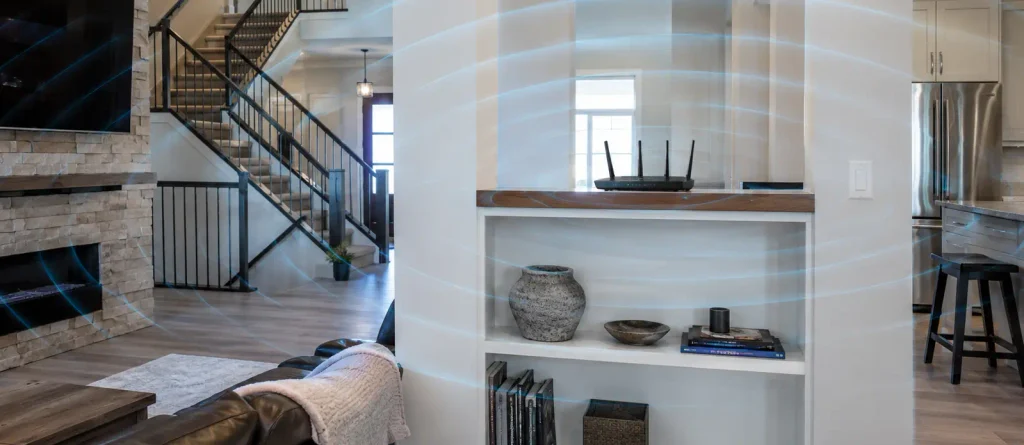
Where your router sits can significantly affect your Wi-Fi experience.
Wi-Fi uses radio frequencies, and those signals must travel through your home.
A router may struggle when it is:
- Hidden inside a cabinet
- Directly on the floor
- Behind a large television
- Surrounded by metal
- At one extreme end of the house
- Located several floors away from important devices
- Placed near other sources of wireless interference
Whenever the installation allows it, a relatively central, open and elevated position is generally preferable.
Think about the path of the signal
Imagine a straight line between the router and the device experiencing problems.
What sits between them?
One drywall partition is very different from several floors, metal shelving, appliances and a concrete wall.
You do not need to redesign your entire home around a router.
But understanding the physical environment helps explain why one room may behave differently from another.
Do not relocate installed equipment blindly
Some network hardware must remain where the service connection enters the property.
If moving equipment requires changing cabling or installation components, confirm what can safely be relocated first.
Test 7: Check Download and Upload Performance Separately
Many people look only at download speed.
That does not tell the complete story.
Download performance affects activities such as:
- Loading websites
- Streaming video
- Receiving files
- Downloading applications
Upload performance affects:
- Video meetings
- Sending large files
- Cloud backups
- Uploading videos
- Submitting school assignments
- Certain connected cameras
- Remote collaboration tools
Imagine that websites load quickly and movies stream normally, but your video calls freeze whenever someone uploads a large file.
The issue may not be insufficient download capacity.
Upload activity could be contributing to the experience.
Test both directions
When running a speed test, note:
- Download
- Upload
- Latency or ping, when available
Do not focus on one isolated result.
Repeat the test under different conditions and compare patterns.
Also remember that Wi-Fi speed tests measure the combination of your internet connection and your local wireless environment.
That is another reason the wired comparison in Test 1 is useful.
Test 8: Check for Congestion Inside Your Own Home
Sometimes the problem is not the connection coming into the property.
It is simply the amount of activity happening inside the network.
Modern households can have dozens of connected devices:
- Phones
- Computers
- Tablets
- Televisions
- Gaming consoles
- Cameras
- Smart speakers
- Thermostats
- Printers
- Appliances
- Sensors
Most do not use significant bandwidth continuously.
But some activities can create substantial demand.
Examples include:
- Large cloud backups
- System updates
- Game downloads
- High-quality streaming
- Multiple video meetings
- Large file transfers
Check what is happening when the slowdown begins
Perhaps a computer automatically starts backing up every evening.
Maybe a gaming console is downloading a 60 GB update.
Perhaps several televisions begin streaming at the same time.
That does not necessarily mean something is wrong with the network.
It may simply mean demand has increased.
Once you identify the activity, you can decide whether to:
- Reschedule large backups
- Pause unnecessary downloads
- Review device settings
- Upgrade network equipment
- Improve Wi-Fi distribution
- Consider additional internet capacity
Again, diagnosis comes before spending.
Slow Internet or Wi-Fi? Use This Decision Table
| Test result | Possible explanation | What to investigate next |
|---|---|---|
| Wired connection is good, Wi-Fi is poor | Wireless coverage or interference | Router placement, Wi-Fi design, mesh or access points |
| Wi-Fi is strong near router but weak in another room | Coverage problem | Distance, obstacles, placement |
| One device is slow while others are fine | Device-specific issue | Updates, Wi-Fi hardware, software |
| All devices slow during busy periods | Capacity or household congestion | Simultaneous usage, internet plan |
| Downloads are fine but video calls struggle | Upload, latency or wireless stability | Upload test, wired test, Wi-Fi |
| Performance improves after restart but problem returns | Temporary equipment/configuration issue | Hardware, firmware, support |
| Several devices are slow even when wired | Broader connectivity issue | Gateway, service, cabling or provider support |
| Problems begin during backups or large downloads | Local congestion | Scheduling and bandwidth use |
This table is not intended to replace professional troubleshooting.
Its purpose is to help you describe the problem more clearly.
That can make the next technical conversation much more productive.
Troubleshooting Checklist
Before upgrading your internet plan, check:
- Run a wired Ethernet test where practical.
- Compare wired and Wi-Fi performance.
- Test Wi-Fi close to the router.
- Test the room where the problem occurs.
- Test a second device in the same location.
- Compare quiet and busy periods.
- Restart the affected device.
- Restart networking equipment according to its instructions.
- Review router placement.
- Look for walls, floors and large obstacles.
- Check download performance.
- Check upload performance.
- Look for large downloads or cloud backups.
- Review connected devices.
- Record when and where the problem happens.
Even completing half of this checklist can give you a much clearer picture of the issue.
When Does a Faster Internet Plan Actually Make Sense?
There are situations where additional capacity may be useful.
For example, your household may regularly have:
- Multiple simultaneous video calls
- Several people streaming
- Frequent gaming downloads
- Large cloud backups
- High-volume file transfers
- Many active users at the same time
If wired performance shows that the connection itself is becoming constrained during normal household use, reviewing the internet plan may be reasonable.
But remember:
More speed is a capacity solution.
It is not automatically a coverage solution.
If Wi-Fi is excellent in one room and poor in another, additional internet capacity may leave the original problem unchanged.
That distinction can save both time and money.
Frequently Asked Questions
Why is my Wi-Fi slow even though my internet plan is fast?
Because your internet plan and Wi-Fi network are two different parts of the connection.
Router placement, distance, interference, building materials and device capabilities can all reduce wireless performance even when the service entering the home has sufficient capacity.
Does a faster internet plan improve Wi-Fi range?
Not necessarily.
A faster plan increases available internet capacity.
It does not automatically increase the physical range or strength of your Wi-Fi signal.
Why is the internet slow only in my basement?
Distance, floors, building materials and router placement may all affect coverage.
Test close to the router and then in the basement using the same device.
A large difference can point toward Wi-Fi coverage rather than insufficient internet capacity.
Why does my internet become slow at night?
Several factors can contribute.
Within your home, evening periods may involve more simultaneous streaming, gaming, backups and connected devices.
Compare quiet and peak periods and note whether the slowdown affects every device.
Why are my video calls freezing when downloads seem fine?
Video meetings rely on more than download speed.
Upload performance, latency, stability and Wi-Fi conditions can also affect the experience.
Test upload performance and, when practical, compare the call over Ethernet.
Is mesh Wi-Fi better than buying a faster internet plan?
They solve different problems.
A higher-capacity internet plan can address insufficient overall bandwidth.
Mesh Wi-Fi is designed to help distribute wireless coverage across a property.
The correct choice depends on the problem you are trying to solve.
Should I replace my router?
Possibly, but not automatically.
Before replacing equipment, test different devices, locations and connection types.
If the router is older, no longer receiving updates or unable to support the needs of the household, replacement may be worth investigating.
Diagnose First. Upgrade Second.
When a connection feels slow, the largest internet plan can seem like the easiest answer.
But a household network has several layers.
The problem could be:
- Internet capacity
- Wi-Fi coverage
- Router placement
- Wireless interference
- Upload performance
- One particular device
- Heavy simultaneous usage
- Network equipment
The most useful troubleshooting approach is to remove variables one at a time.
Start wired.
Move to Wi-Fi.
Change locations.
Change devices.
Compare busy and quiet periods.
Check upload and download performance.
Then look at what the household was actually doing when the slowdown occurred.
Once you understand the pattern, the next decision becomes much clearer.
CloudStar’s approach to home connectivity is based on that principle: understand the problem before recommending more technology.
Sometimes the answer may be more internet capacity.
Sometimes it may be better Wi-Fi coverage.
And sometimes the solution costs nothing more than changing a setting, updating a device or moving equipment to a better location.
Explore CloudStar Internet options or check service availability for your address when you are ready to review what your home network actually needs.
Before changing your internet plan, it can help to measure your current connection under real household conditions. You can use Speedtest by Ookla to check your download speed, upload speed and latency. For a more useful comparison, run the test more than once: try it near your router, again in the room where you normally experience problems, and during both quiet and busy periods. The goal is not simply to focus on the highest number, but to identify patterns that can help you determine whether the issue may be related to internet capacity, Wi-Fi coverage or a specific device.